

 Abotts partners with NYPL to integrate with their partner libraries.
 Upworks Inc partners with ABOTTS to build their Oracle Cloud Infrastructure (OCI).
 Abotts Inc Partners with Gnorth consulting to deploy exadata and ODA.
Overview
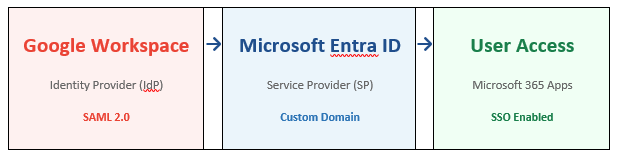
This guide provides step-by-step instructions to configure Google Workspace as a SAML 2.0 Identity Provider (IdP) for Microsoft Entra ID (formerly Azure Active Directory). Once configured, users can authenticate to Microsoft Entra ID — and all connected Microsoft 365 services — using their existing Google Workspace credentials.
Prerequisites
Microsoft Entra Requirements
- A Microsoft Entra tenant with one or more custom DNS domains (not in *.onmicrosoft.com format)
- If the domain hasn’t been added yet, DNS access is required to create a verification record
- Admin access to the Microsoft Entra admin center (entra.microsoft.com) with at minimum the External Identity Provider Administrator role
Google Workspace Requirements
- Access to Google Workspace Admin Console (admin.google.com) with Super Admin privileges
- Users already created in Google Workspace with email addresses defined
User Account Requirements
- Each Google Workspace user must have a corresponding account in Microsoft Entra ID
- The email address must match between Google Workspace and Microsoft Entra ID

Phase 1 — Configure Google Workspace as an IdP
Sign in to the Google Workspace Admin Console and add the Microsoft Office 365 SAML application to begin federation setup.
Step 1.1 — Add the Microsoft Office 365 SAML App
- Sign in to the Google Workspace Admin Console at admin.google.com using a Super Admin account
- Navigate to Apps > Web and mobile apps from the left navigation menu.
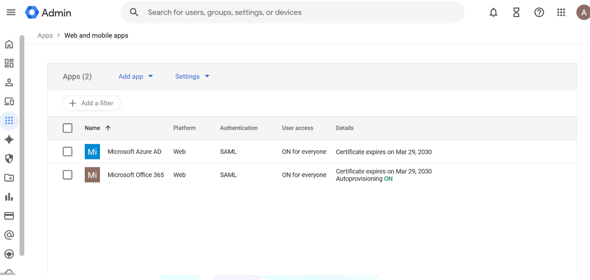
- Click Add app > Search for apps and type “Microsoft” in the search box.
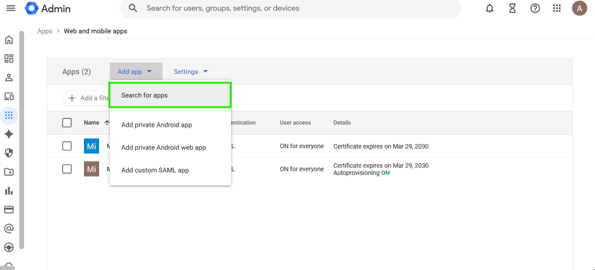
- In the search results, hover over Microsoft Office 365 – Web (SAML) and click Select.
Step 1.2 — Download IdP Metadata
- On the Google Identity Provider details page, click Download Metadata.
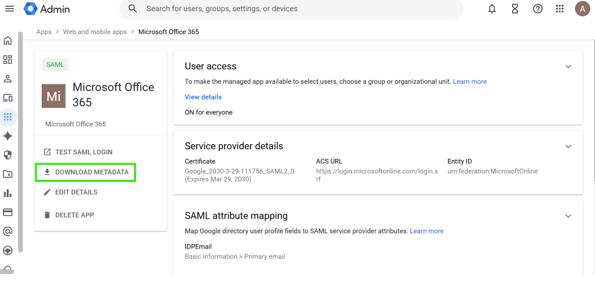
- Save the file GoogleIDPMetadata.xml to a known location — this file is needed in Phase 2 to configure Microsoft Entra ID
Step 1.3 — Configure Service Provider Details
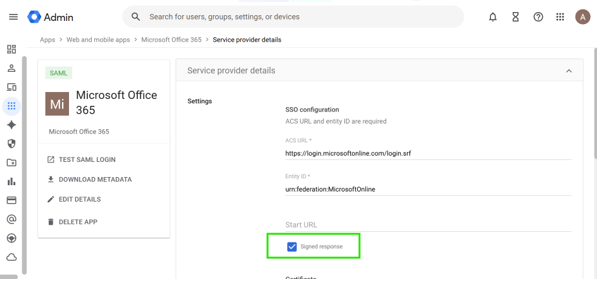
- On the Service provider details page, enable the Signed response option.
- Verify that the Name ID format is set to PERSISTENT.
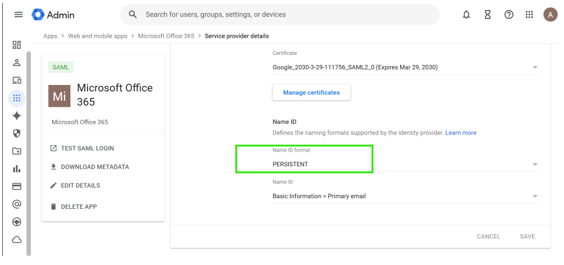
- Set the Name ID mapping. If using Google autoprovisioning, select Basic Information > Primary email
- Click Continue.
Step 1.4 — Configure Attribute Mapping
On the Attribute mapping page, configure the following mapping between Google Directory attributes and Microsoft Entra attributes:
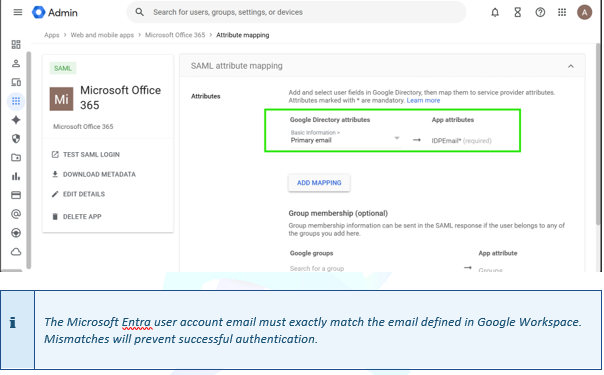
Click Finish to complete the app configuration.
Step 1.5 — Enable App for All Users
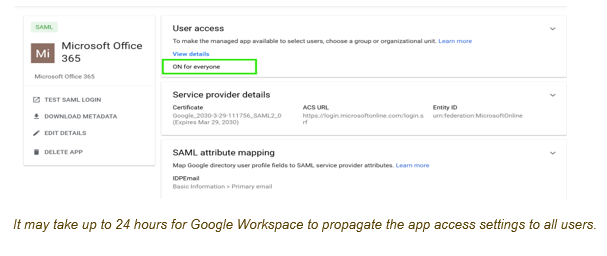
- Return to Apps > Web and mobile apps and select Microsoft Office 365.
- Click User access.
- Select ON for everyone and click Save.
Phase 2 — Configure Microsoft Entra ID as a Service Provider
Use PowerShell to configure the authentication method for your custom domain in Microsoft Entra ID, using the metadata file downloaded from Google Workspace.
Step 2.1 — Prepare the PowerShell Environment
- Open a PowerShell session on a Windows machine with internet access.
- Run the following commands to install and import the Microsoft Graph module:

Step 2.2 — Run the Federation Configuration Script
- Copy the GoogleIDPMetadata.xml file to the same directory from which you will run the script.
- Replace <your domain name> in the script below with your actual custom domain (e.g., contoso.com), then run the full script:
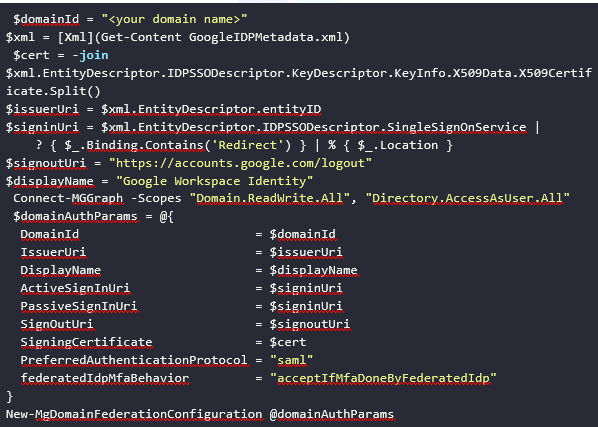
When prompted to authenticate, sign in with an account that has at minimum the External Identity Provider Administrator role in Microsoft Entra ID
Phase 3 — Verify the Configuration
Step 3.1 — Verify via PowerShell
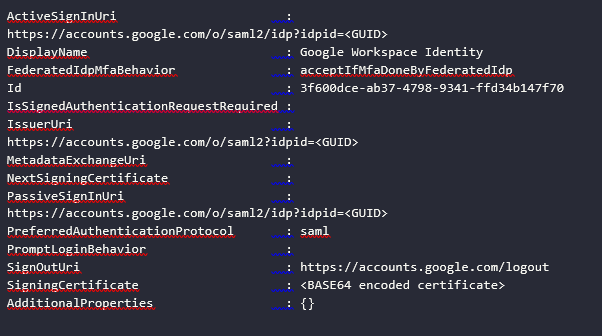
Run the following command to confirm the federation configuration was applied correctly:

The output should match the expected values shown below:
Step 3.2 — Verify via Browser Sign-in Test
- Open a private/incognito browser window to avoid cached sessions.
- Navigate to https://portal.azure.com
- Enter the username as the email address defined in Google Workspace (e.g., user@yourdomain.com).
- You should be automatically redirected to the Google Workspace sign-in page.
- After completing Google authentication, you should be redirected back to the Azure portal and signed in successfully.
If sign-in fails, verify that: (1) the email addresses match exactly in both systems, (2) the GoogleIDPMetadata.xml was downloaded fresh and is not expired, and (3) the domain federation configuration shows the correct IssuerUri.
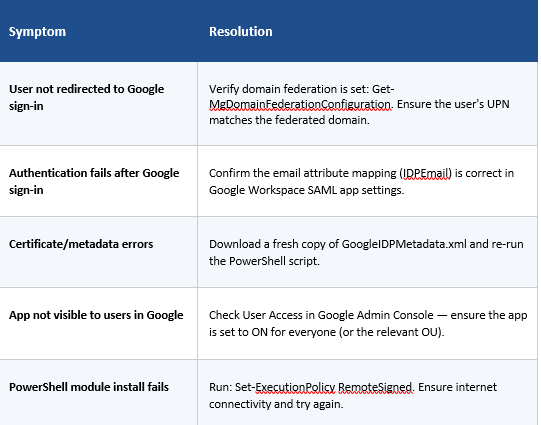
Troubleshooting Reference
References
- Microsoft Learn: Configure Federation Between Google Workspace and Microsoft Entra ID –https://learn.microsoft.com/en-us/education/windows/configure-aad-google-trust
- Microsoft Entra Admin Center – https://entra.microsoft.com
- Microsoft Entra Custom Domain Setup – https://learn.microsoft.com/en-us/azure/active-directory/fundamentals/add-custom-domain
- Google Workspace Admin Console – https://admin.google.com