
 Abotts partners with NYPL to integrate with their partner libraries.
 Upworks Inc partners with ABOTTS to build their Oracle Cloud Infrastructure (OCI).
 Abotts Inc Partners with Gnorth consulting to deploy exadata and ODA.
How to Set Up Email Alerts for Progress OpenEdge Services
In a production environment, Progress OpenEdge services must remain available at all times. A single stopped service can impact business operations, cause application downtime, and delay users.
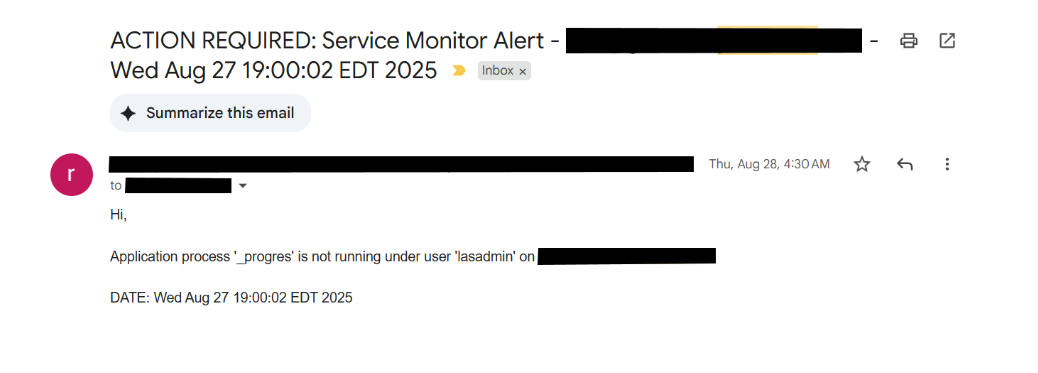
During a real-world production setup, I implemented an email alert monitoring solution to immediately notify the support team when any Progress service stopped working.
Why Email Alerts Are Important for Progress Administrators
Without monitoring, issues are only discovered when users complain.
With email alerts, you:
- Know about failures immediately
- Reduce downtime
- Improve response time
Setting Up the Email Alert
Step 1: Configure Email on Linux
Before writing monitoring scripts, ensure your server can send emails.
Install Mail Utility
RHEL / CentOS
yum install mailx -y
Ubuntu / Debian
apt install mailutils -y
Test Email
echo “OpenEdge Alert Test” | mail -s “Test Email from OpenEdge Server” yourmail@example.com
If the mail is delivered, you’re ready to proceed.
Step 2: Create OpenEdge Monitoring Script
Creating shell script files:
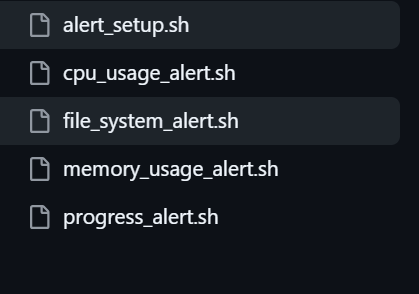
Script is stored in the GitHub repository below:
https://github.com/deekshithabottts/email-alert.git
Step 3: Make Script Executable
chmod +x alert_setup.sh
chmod +x cpu_usage_alert.sh
chmod +x file_system_alert.sh
chmod +x memory_usage_alert.sh
chmod +x progress_alert.sh
Step 4: Test the Script
Stop the service and run it manually :
./alert_setup.sh
You should receive an email if the service is down.
Step 5: Automate Monitoring with Cron
Edit the crontab:
crontab -e
Add this entry:

Now the system checks services every 10 minutes and emails you in case of failure.
Step 6: Testing run the email alert